
Web Administration
Users & Access Management
Creating field and office accounts, assigning roles, and scoping users to the stores and projects they work in.
Creating Users
Every mobile login is provisioned here.
Field personnel cannot self-register. A Web Administrator creates each account under USER MANAGEMENT > Users on the Add User tab. The username doubles as the mobile login identity: an organization email address or a National Identity Card (NIC) number, paired with a password.
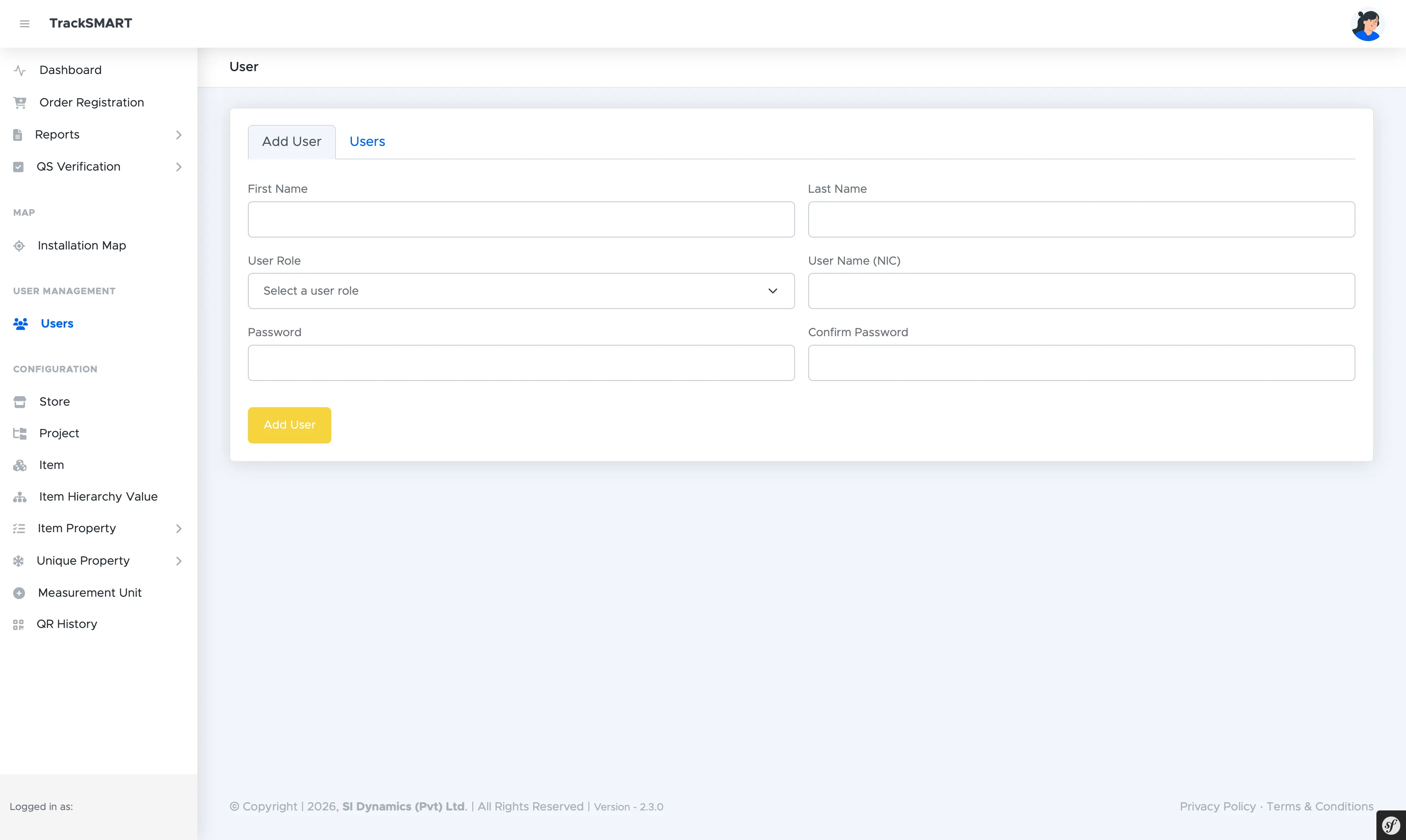
- 1Open USER MANAGEMENT > Users and stay on the Add User tab.
- 2Enter the First Name and Last Name.
- 3Select the User Role: Admin, Supervisor, Store keeper, Quantity surveyor, or Report User.
- 4Enter the User Name — the NIC number or organization email used for mobile login.
- 5Set the Password and Confirm Password, then click Add User.
Managing the User Register
Filtering, editing, and scoping 30+ site accounts.
The Users tab lists every account with its role. Filters narrow the register by User Role and Project before applying. Each row carries edit and password-reset actions, plus drill-ins that reveal exactly which stores and projects that user can operate in — the same scope the mobile app enforces at login.
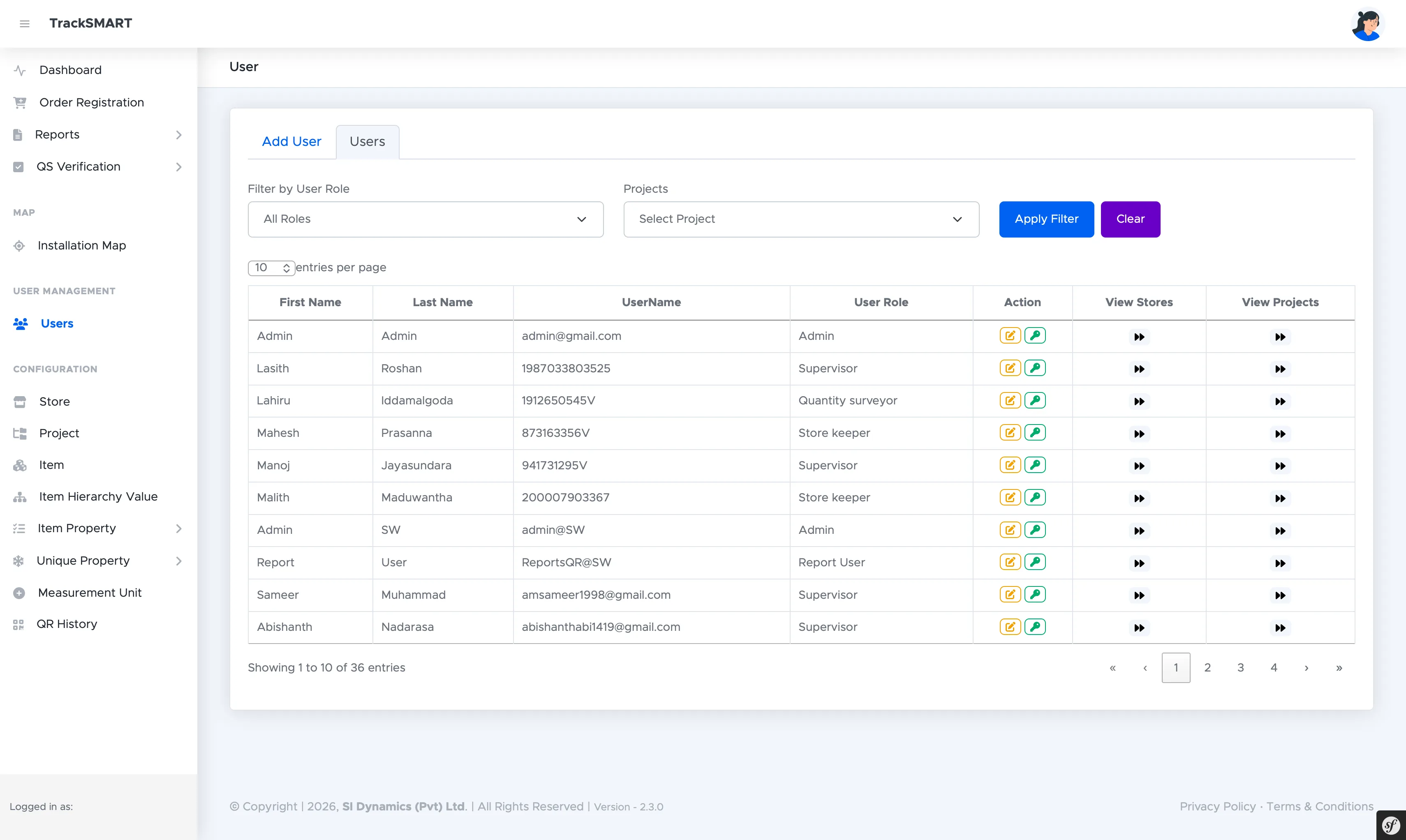
- Supervisors and Store keepers get mobile access scoped to their assigned stores and projects.
- Quantity surveyors work the QS Verification queue for progress sign-off.
- Report Users receive read-only reporting visibility without operational rights.
- Use View Stores and View Projects to audit a user's scope before they head to site.